
Adding scheduling to Instant Quote gives homeowners a clear next step after seeing pricing. It helps capture more serious buyers and reduces back-and-forth with your team.
You can connect either Calendly or Service Titan Schedule Link to your Instant Quote
Option 1: Set Up Scheduling with Calendly
-
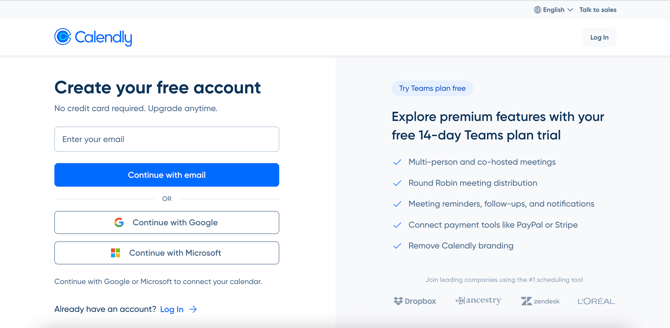
Create a free Calendly account at calendly.com
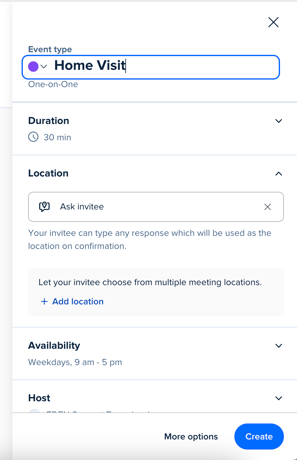
- Click “Create” and select a 1:1 event, then name it something like “Home Visit” or “In-Home Consult” and set your availability. This is what homeowners will see after pricing, so keep it simple.
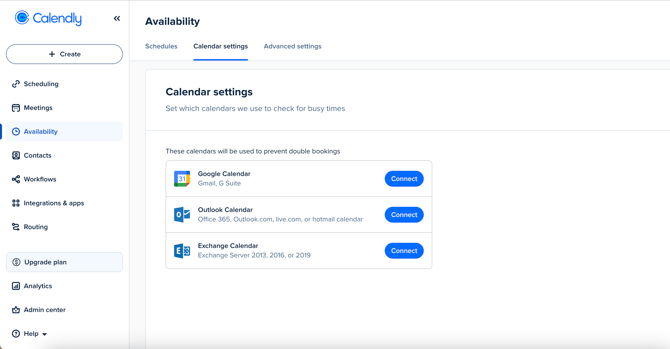
- (Optional) Connect your calendar under “Availability” → “Calendar settings” to show real-time openings and prevent double bookings.
- Copy your event link and send it to us so we can add scheduling directly to your Instant Quote.

Option 2: Use ServiceTitan Scheduling Link
If you're already using ServiceTitan’s scheduling tools, we can connect directly to that instead. However, the homeowner may have to go through repetitive questions that are not customizable depending what solution you have enabled.
If you have the ability to create a new scheduling link, with just a calendar (instead of the repair or new install questions), this improves the experience for the homeowner.
If you’re not sure which link to use, just send what you have and we’ll help confirm.
What This Looks Like for Homeowners
On the results of Instant Quote homeowners can choose a system, proceed to schedule a home visit and book directly on your calendar creating a smoother path from interest to appointment and sale.